Category: Uncategorized

  • How to take screenshot on Samsung Galaxy A52s 5G – 5 Ways

    Screenshots are the essential feature of a smartphone. To save the payment receipt, share the game score or just share or save anything on screen, screen capture becomes handy. In this post, let us explore how to take screenshot on Samsung Galaxy A52s 5G.

    Different ways to take screenshot on Samsung Galaxy A52s 5G

    There are multiple ways to capture a screenshot on this phone. Some are built in functions and some need to install third party apps. This post covers on 5 built ways to capture screenshot.

    Method 1: Using the hardware button combination

    To use this method,

    • Go to the page you want to capture screenshot.
    • Press and release Power and Volume Down key together.
    • It will save the screenshot.

    Method 2: Using the Palm Swipe Gesture

    To capture screenshot on Galaxy A52s 5G using palm swipe gesture,

    • Navigate to the page you want to screenshot.
    • Swipe your palm from right to left or Left to right.
    • It will save the screenshot.

    Method3: Using the Assistant Menu

    • Go to Settings->Accessibility->interaction and dexterity.
    • Enable Assistant menu.
    • Whenever you want to take a screenshot on Samsung A52s, tap the Assistant menu and select screenshot.

    Method 4: Using the Tasks Edge Panel

    • Go to Settings->Display->Edge Panel. Enable Edge Panel.
    • Tap on Panels. Add Tasks board by selecting it.
    • To take screenshot, go to Edge Panel. Navigate to Tasks.
    • Tap on Take Screenshots.

    Method 5: Using Smart Select

    • Open Edge Panel and go to Setting.
    • Add Smart Select board.
    • Now on Edge Panel, navigate to Smart Select page.
    • Select the shape you want to take screenshot.

    Long or scroll screenshot

    If you want to take a long or scroll screenshot,

    • Take screenshot using any of the first 4 methods.
    • You will get a screenshot toolbar.
    • Tap on scroll button(First button on the screenshot toolbar).
  • What Are The Key Features of Android 12?

    Google has already released the third beta of its upcoming Android 12 to its Pixel devices and it won’t be long before the stable build is released. Android 12 brings a host of new features like a privacy dashboard, personalized themes, notification layouts, app hibernation and more. It’s okay if you don’t own a Pixel device. Who’s stopping you from knowing about the key features of Android 12?

    So, what are you waiting for? Scroll down to know all about Android 12.

    What is Android 12?

    Before jumping into the key features, let’s learn a little about Android 12.

    As you already know, Android is a mobile operating system by Google. Keeping up with their tradition of naming the versions, Android 12 will be called Snow Cone. And if you are wondering when it will be released, Google hasn’t announced it yet. A little bird told me that it might be in September 2021. You can check out the Beta version though.

    Android, open-source software for touchscreens was first released in the year 2008. Since then, it has consistently released new versions every year with each version getting better and better. 

    Want to know the key features of Android 12?

    What are the Key features of android 12?

    Privacy Dashboard

    Nobody likes it when somebody else checks our phones. When I say someone, I don’t mean our family and friends. I’m talking about the apps that have access to our private information. And Android 12 has a solution for that. Privacy Dashboard!

    With the Privacy Dashboard, you can check all the permissions and the data accessed by other apps in a single view. You can revoke the permissions for certain apps from here. Also, the top right of your status bar will indicate whenever an app accesses your microphone or camera.

    Material You

    How would you like it if you could just choose the colour palette and redesign the widgets? With Android 12, you can choose your wallpaper and the OS changes the theme accordingly thanks to the colour extraction protocol.

    This design language called Material You allows the user to influence the design elements of the home screen, lock screen, widgets, notifications etc. You can take the customization to a whole new level.

    App Hibernation

    Do you have many unused apps that you don’t want to uninstall but take up a lot of space? With Android 12, you can just hibernate them. You can enable this option through the toggle in the app’s info. 

    As the name suggests, App hibernation hibernates the unused apps by stripping all their permissions and clears all the temporary files and cache. 

    Notifications

    The very first thing that we do when we pick up our mobile phones is checking the notifications. Android 12 is bringing out some changes here too. The OS groups the notifications per app or separate if they are not conversations. 

    Another addition to the notification window is the snooze option. Instead of swiping the notification and forgetting it later, you can just tap the snooze option and the phone will remind you again after a pre-set amount of time. How cool is that?

    Scrolling Screenshots

    Isn’t it a little frustrating when you have to take multiple screenshots of an entire webpage or conversation? Android 12 lets you take one long screenshot even if you don’t own a Samsung Galaxy phone.

    All you need to do is take a screenshot as usual and tap the “capture more” button to scroll down and take more screenshots. You can crop and make other adjustments later.

    Widgets

    Don’t you think that opening the app through your widgets is a little bit extra work? Well, Android 12 is bringing out dynamic controls to widgets. It will let you tick the checkboxes, change the radio station, etc. Also, you can sort and search new widgets according to the categories. 

    One-handed mode

    Do you often use just one hand to operate your phone? Now, you have a special mode for that. All you have to do is activate it from the Android settings. One-handed mode brings the top part of the display downwards so that you can easily reach any button or icon. 

    Conclusion

    So these were some of the key features of Android 12 and there are a lot more features that you can enjoy once the Android 12 stable build releases.

    On a scale of 1 to 10, how excited are you for the release of Android 12? Do you have any particular features that you are looking forward to? Tell us in the comments below!

  • MG Astor SUV with India’s First Personal AI Assistant and First-in-Segment Autonomous Level 2 Technology Launched in India

    MG Motor India today unveiled the industry-first personal AI assistant and first-in-segment Autonomous Level 2 technology, to be featured in their upcoming mid-size SUV – Astor. MG aims to further its auto-tech focus by building on the concept of Car-as-a-Platform (CAAP) of possibilities and services.

    MG is working on emerging technologies like Artificial Intelligence (AI) to enable the development and application of services and subscriptions to support the ‘on-demand in-car’ needs of the customers. Astor is the first car to get a personal AI assistant in the company’s global portfolio.

    The personal AI assistant is designed by the acclaimed American firm ‘Star Design’. It depicts human-like emotions & voices and can give detailed information on every topic through Wikipedia. It will engage with people in the car and is powered by i-Smart Hub. It is a platform on which the partnerships, services, and subscriptions of CAAP will reside. It will allow customers to personalize their set of services.

    Speaking about India’s first personal AI assistant and the first-in-segment Autonomous Level 2 car Astor, Mr. Rajeev Chaba, President and MD, MG Motor India, said, “As an auto-tech brand, we’ve always introduced breakthrough technologies and now, we are moving forward with Artificial Intelligence. Astor is a step further and a catalyst for disruption with first-in-the-industry and best-in-class features that customers only get in premium/luxury segments. With a relentless pursuit of innovation and software at the heart of the production, our vehicles will continue to provide a smarter and safer driving experience by leveraging AI.”

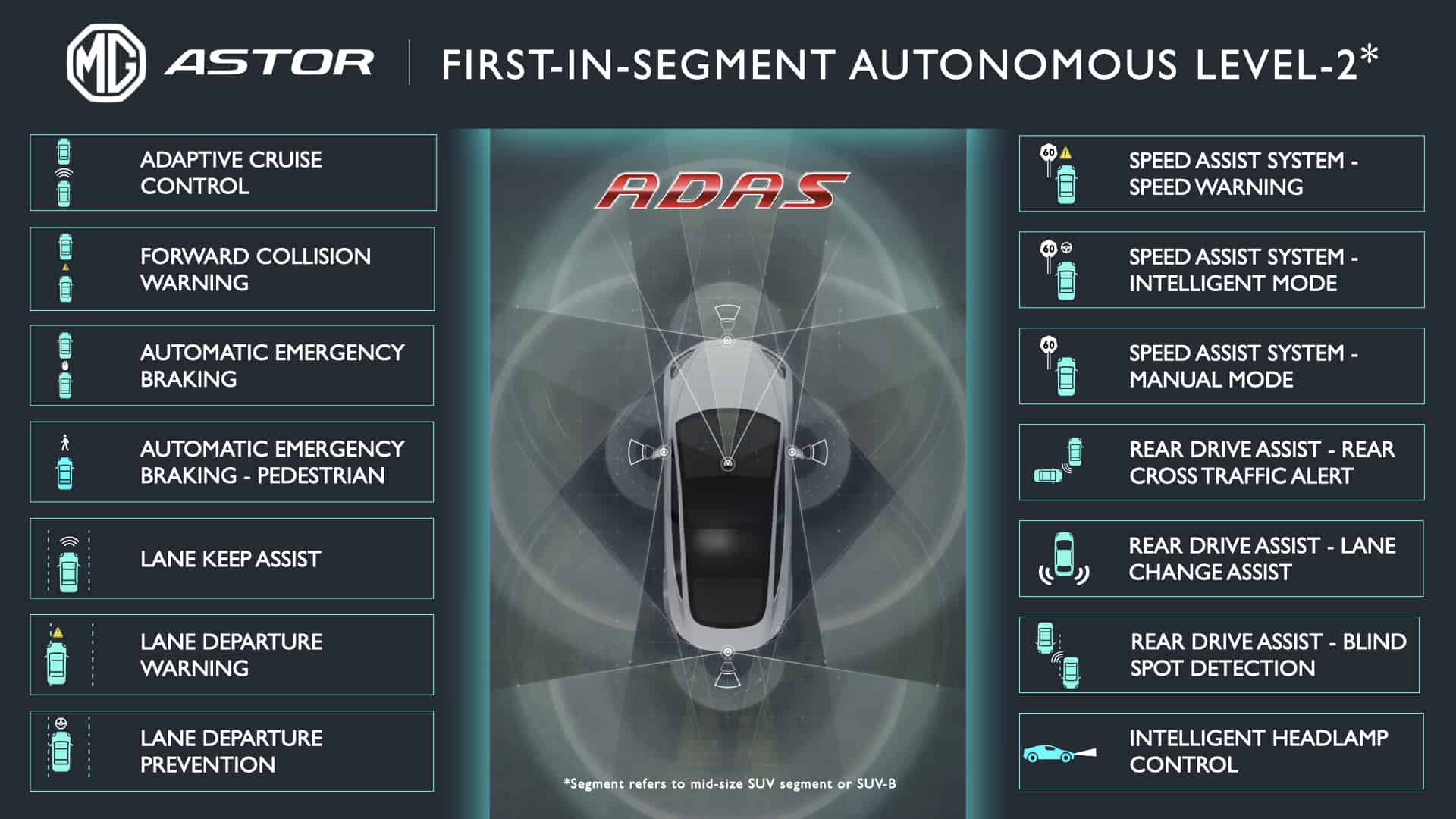
    The Autonomous Level 2 MG Astor is powered by mid-range radars and a multi-purpose camera that can realize a series of advanced driver-assistance systems (ADAS). These include Adaptive Cruise Control, Forward Collision Warning, Automatic Emergency Braking, Lane Keeping Assist, Lane Departure Warning, Lane Departure Prevention, Intelligent Headlamp Control (IHC), Rear Drive Assist (RDA) and Speed Assist System amongst others. These functions can significantly improve driving safety and comfort, and they have been further optimized for Indian traffic conditions.

    The name Astor is derived from Raytheon Sentinel, an airborne battlefield and ground surveillance aircraft formerly operated by the Royal Air Force (RAF), UK. MG Astor shares the popular ZS platform sold by MG across the globe in countries such as the UK, Australia, New Zealand, Middle East, Norway, Netherlands and other countries in Asia too.

    For the first time in India, MG recently showcased CAAP with endless possibilities. Building an ecosystem of various in-car services, it hosts subscriptions and services, including maps and navigation with MapMyIndia, Jio connectivity, the first-of-its-kind Blockchain-protected vehicle digital passport by KoineArth and more. MG car owners will also get access to music on the JioSaavn app along with the industry-first feature of reserving a parking slot through a head unit (powered by Park+ – select cities to begin with) in the car. CAAP will create various possibilities which will evolve with time, creating a safer and smarter driving experience.

    MG ASTOR DESIGN TEASED

    Astor gets an all-new Bold Celestial Grille that is inspired by cosmic lines and forms which adds dynamism to the front of the car. The radial pattern concentrates the epicentre of the entire front face. The tungsten steel electroplated material forms a distinct appearance like the sun. The contrast of light and dark further highlights the three-dimensional effect of each flashing cell. The British automaker also revealed the unique ‘Dual Tone Sangria Red’ interior of Astor, which is one of the three interior themes, signifying state-of-the-art craftsmanship.

  • How to Check Apple Pencil battery Percentage Level

    Apple Pencil doesn’t have any sort of lights which shows the battery level. While 2nd Generation Apple pencil magnetically attaches on the side of the iPad and charges. 1st Generation Apple Pencil needs to be charged by connecting to iPad or charger. In this post, let us have a quick look into How to check Apple pencil battery percentage level using the iPad widget.

    If you are using the Apple pencil for long time, then knowing the battery level will help you to know when to keep it for charging. Apple Pencil is claimed to provide upto 12 hours of battery life in a single charge. Also even in case battery drains out, you can charge it for 15 seconds and use it for 30 minutes.

    How to check apple pencil battery percentage level

    To check battery percentage of Apple Pencil first generation,

    • Enable Bluetooth on your iPad.
    • On your iPad, go to Widget area. You can do that by swiping left to right from first home screen page.
    • Here tap on edit.
    • Scroll down. Here you will find all the available widgets.
    • Tap “+” sign adjacent to battery widget.
    • It will be added to favorite section.
    • You can move it to change the order.
    • Now battery percentage of your Apple pencil will be shown on the widget.

    The 2nd Generation Apple pencil battery percentage will be directly shown at the top of the screen when it is attached to the side of the iPad.

  • How to take screenshot on Samsung Galaxy M21- 3 different methods

    Want to capture a screenshot on Galaxy M21? Very often we come across a situation in which we want to grab what is on our phone screen and either share it or save it for future reference. Screenshots are the perfect solution for this. So here is how to take screenshot on Samsung Galaxy M21.

    Galaxy M21: How to take screenshot

    • Hardware keys method
    • Assistant Touch menu
    • Palm swipe gesture.

    Taking a screenshot on Galaxy M21 using the hardware keys

    To take screenshot using this methods, follow the steps given below.

    • Navigate to the content which you want to screenshot.
    • Quickly press Power and volume down key simultaneously and release them.
    • The screen will flash and screenshot will be saved.
    • Screenshot toolbar will pop up in the bottom. You can directly share from there or you can jump into the editing mode. Editing mode lets you crop and draw on the screenshot before sharing or saving.

    How to screenshot using Palm swipe

    • Open the content you want to screenshot.
    • Swipe your palm from one side to other ensuring the edge of the palm touches the screen slightly.
    • The screen will flash and the screenshot will be saved.
    • If this method does not works, go into Settings, Advanced features, Motions and gestures and make sure Palm swipe to capture is turned on.
    • You will be getting a sharing and editing options in the exact same way from either the on screen toolbar or notification shade.

    Capture screenshot using Assistive touch

    To use this method,

    • Enable the Assistant Touch menu.
      • Go to Settings, Accessibility and then interaction and dexterity.
      • On this page enable Assistant Menu. In the next page, make it on.
      • You will find a floating button.
    • Go to the page you want to capture screenshot.
    • Tap on Assistive touch and select Screenshot.
    • It will save the screenshot.